04. Come Aboard the 360 Media Train!
Come Aboard The 360 Media Train!
Getting Started with Street View
Download the the Street View app from the Android Play Store or the iOS App Store.
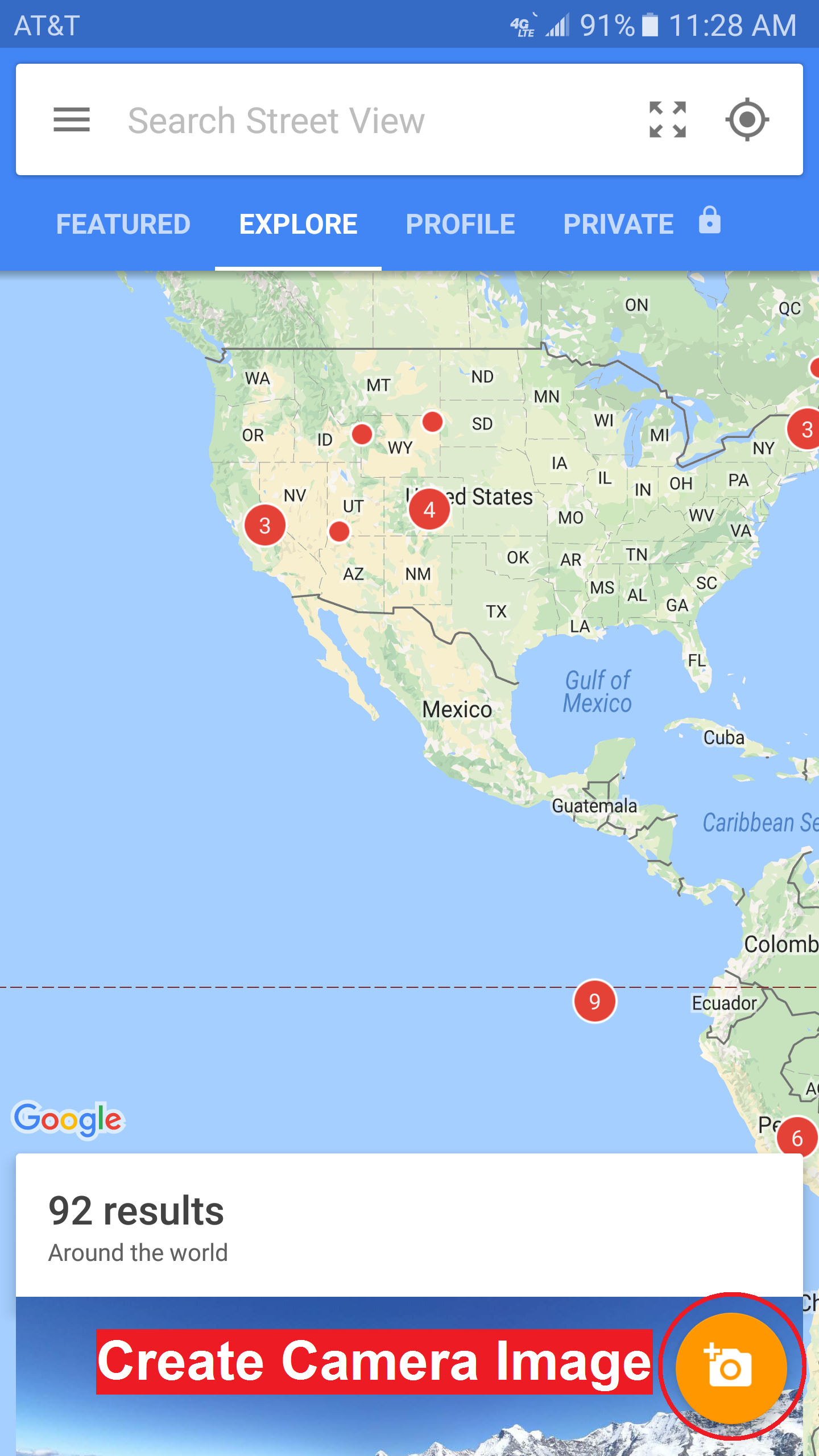
When first open the app, you will see the Explore tab. From here you can explore 360 pictures that other people have published.
But we are interested in creating an image, so click the Camera Icon. And select Camera from the Dropdown.
Building a Photosphere
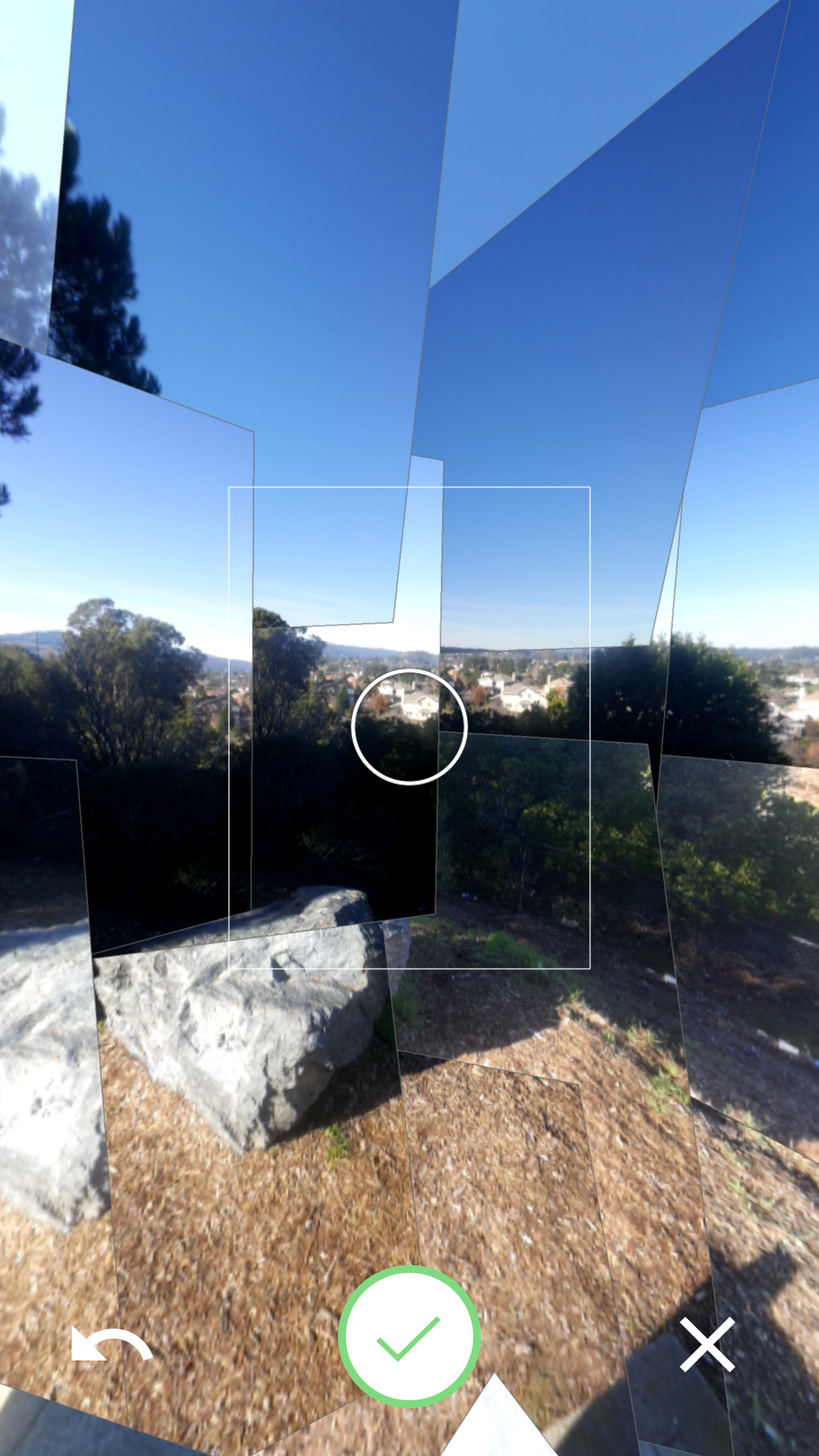
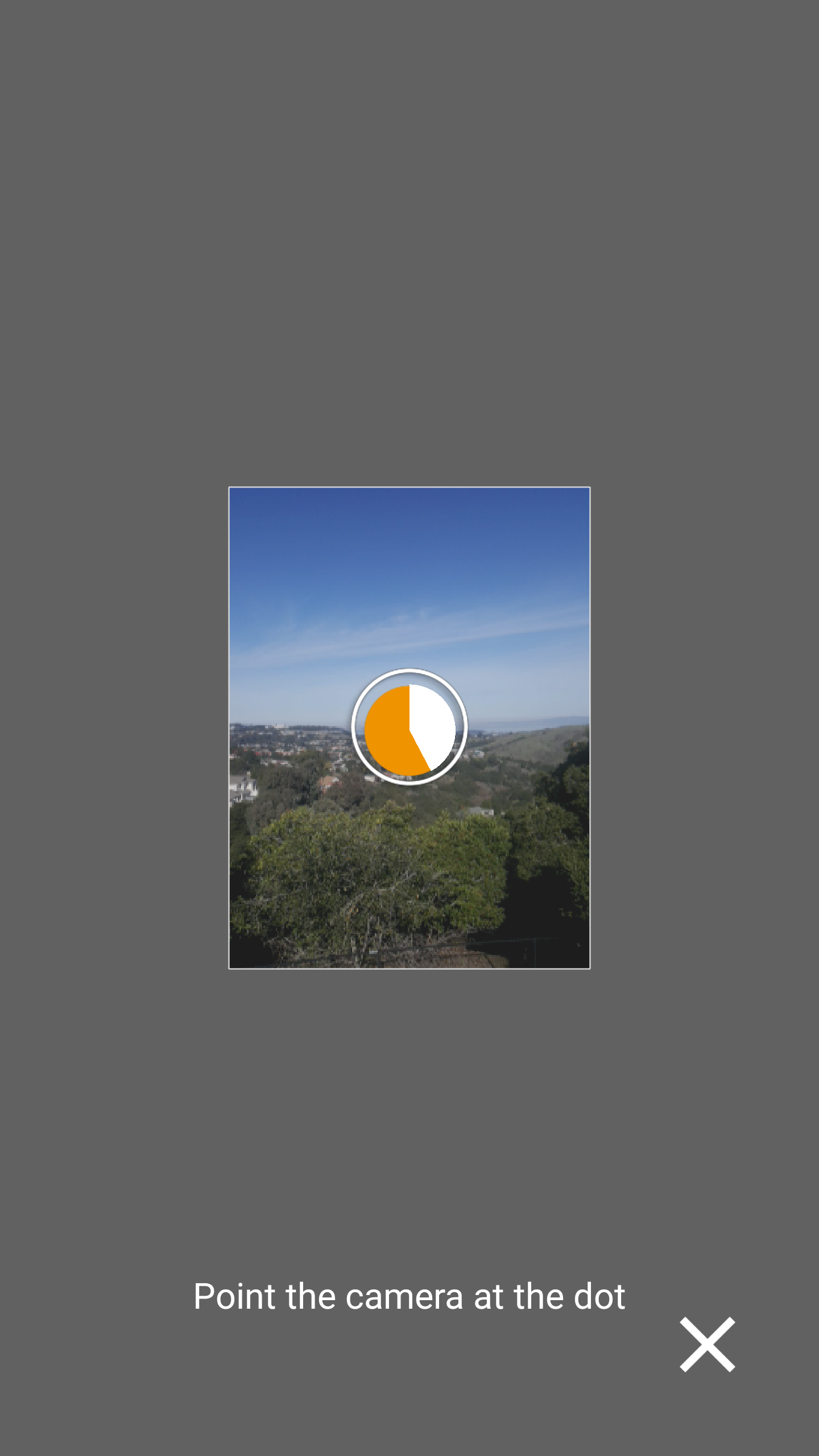
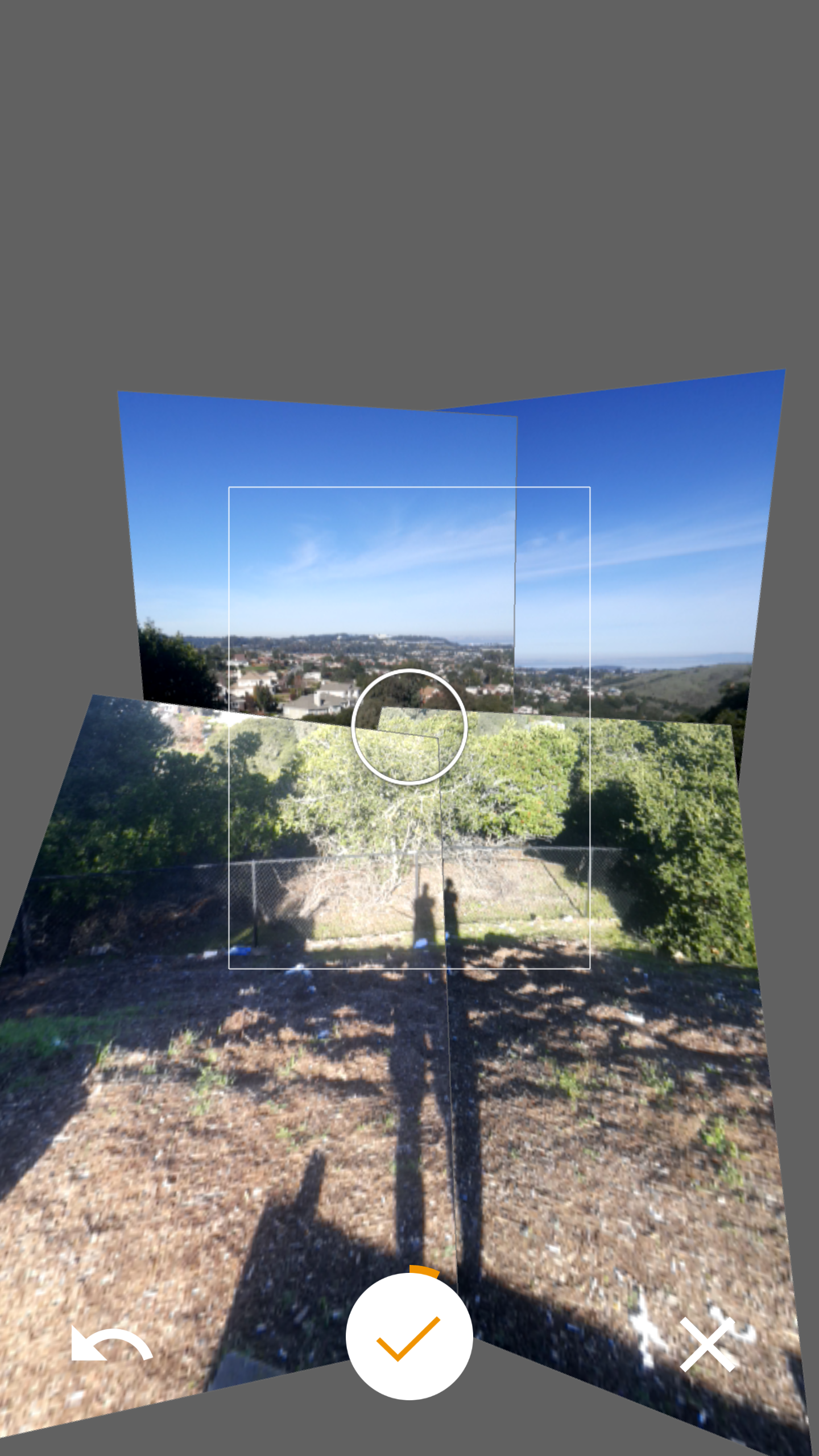
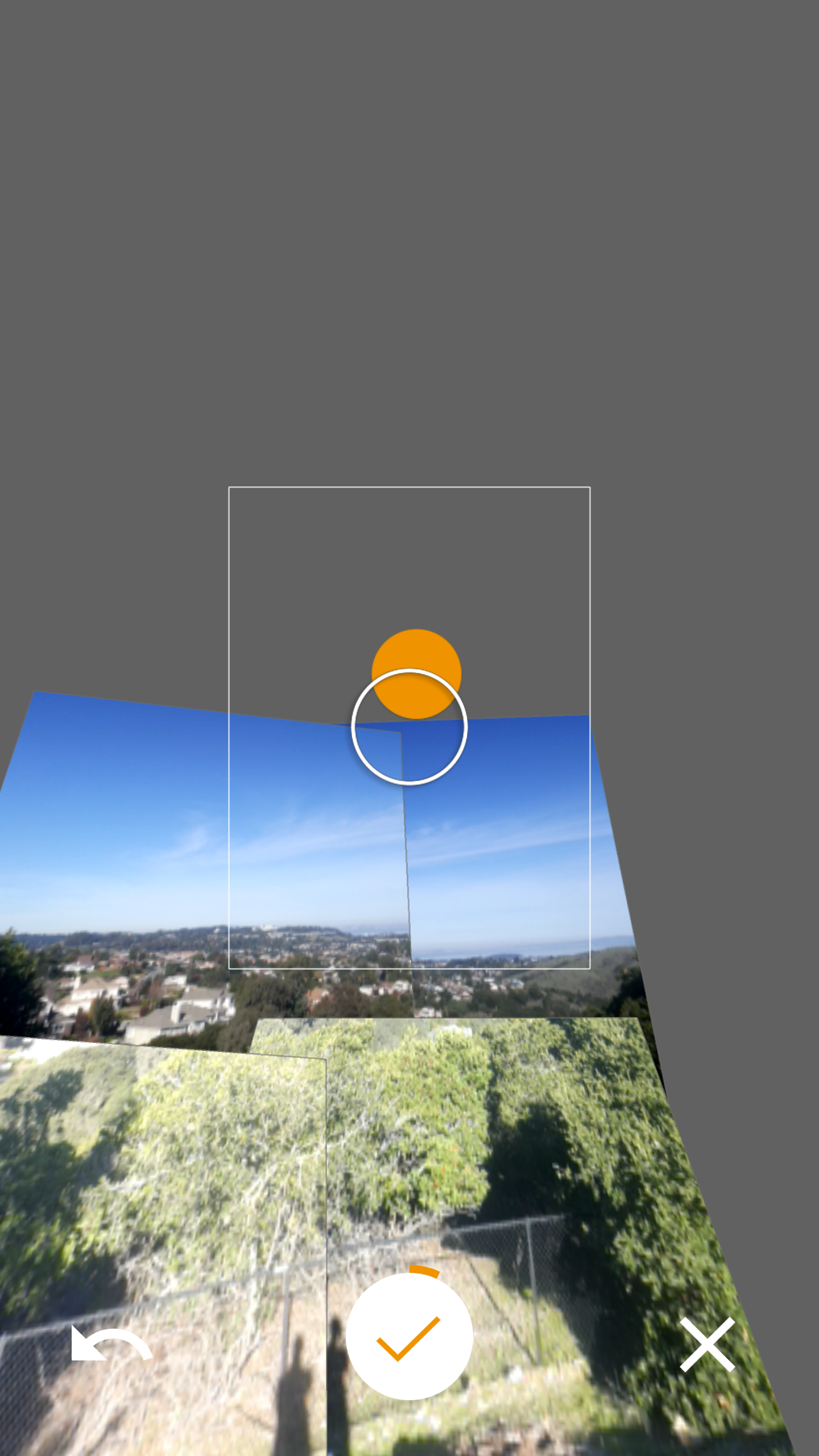
Once you are in, follow the Orange Dots to take pictures of everything around you. Try to keep track of how many images you take. For a complete 360 photosphere, you will need a lot!
Finishing Up
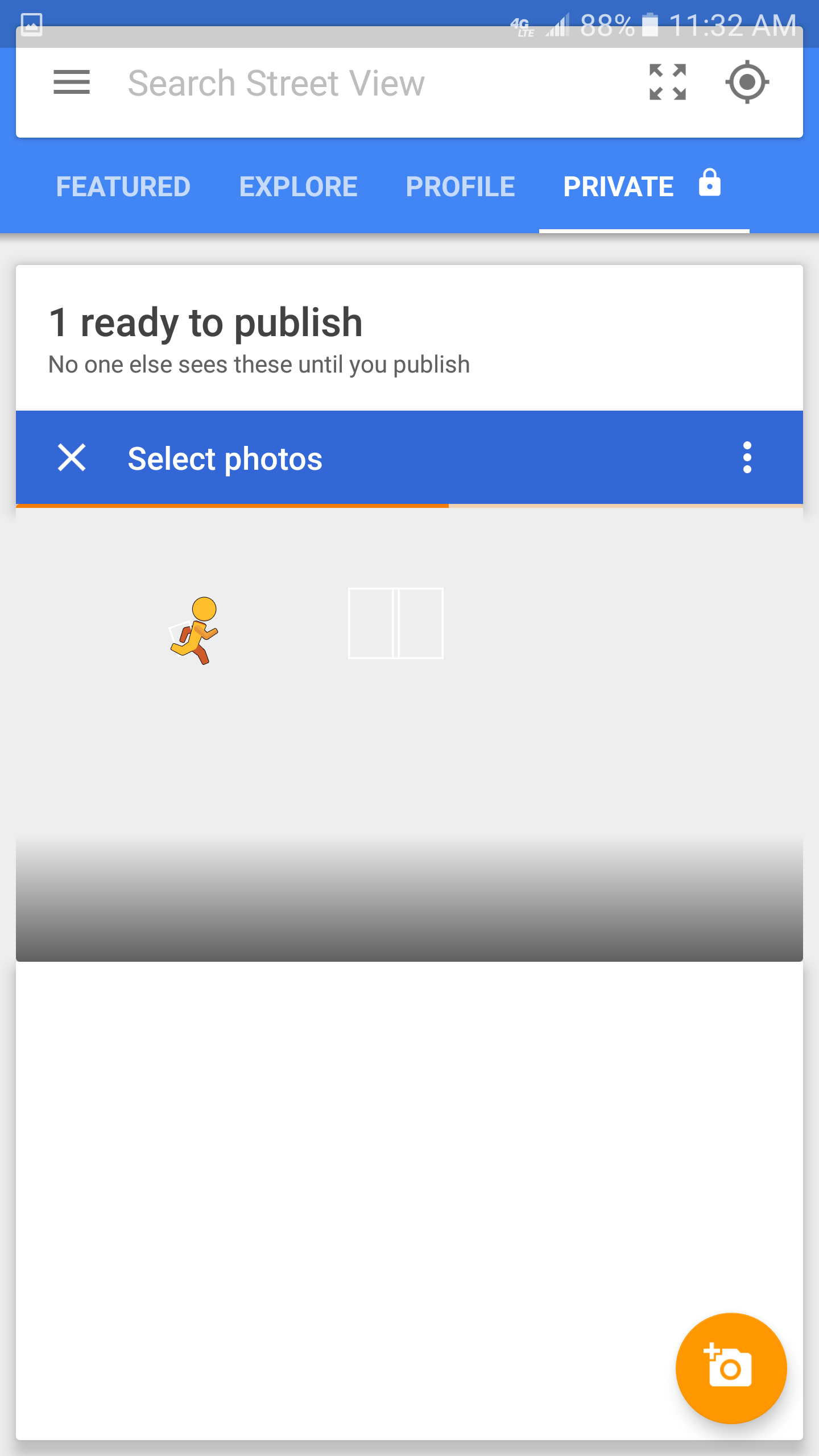
Once you have completed taking all the pictures you need (Tip: you don't have to complete a full 360, you can stop whenever), click the check mark, which will then cause your phone to start compiling all the images together into a seamless picture. This process can take a few minutes.
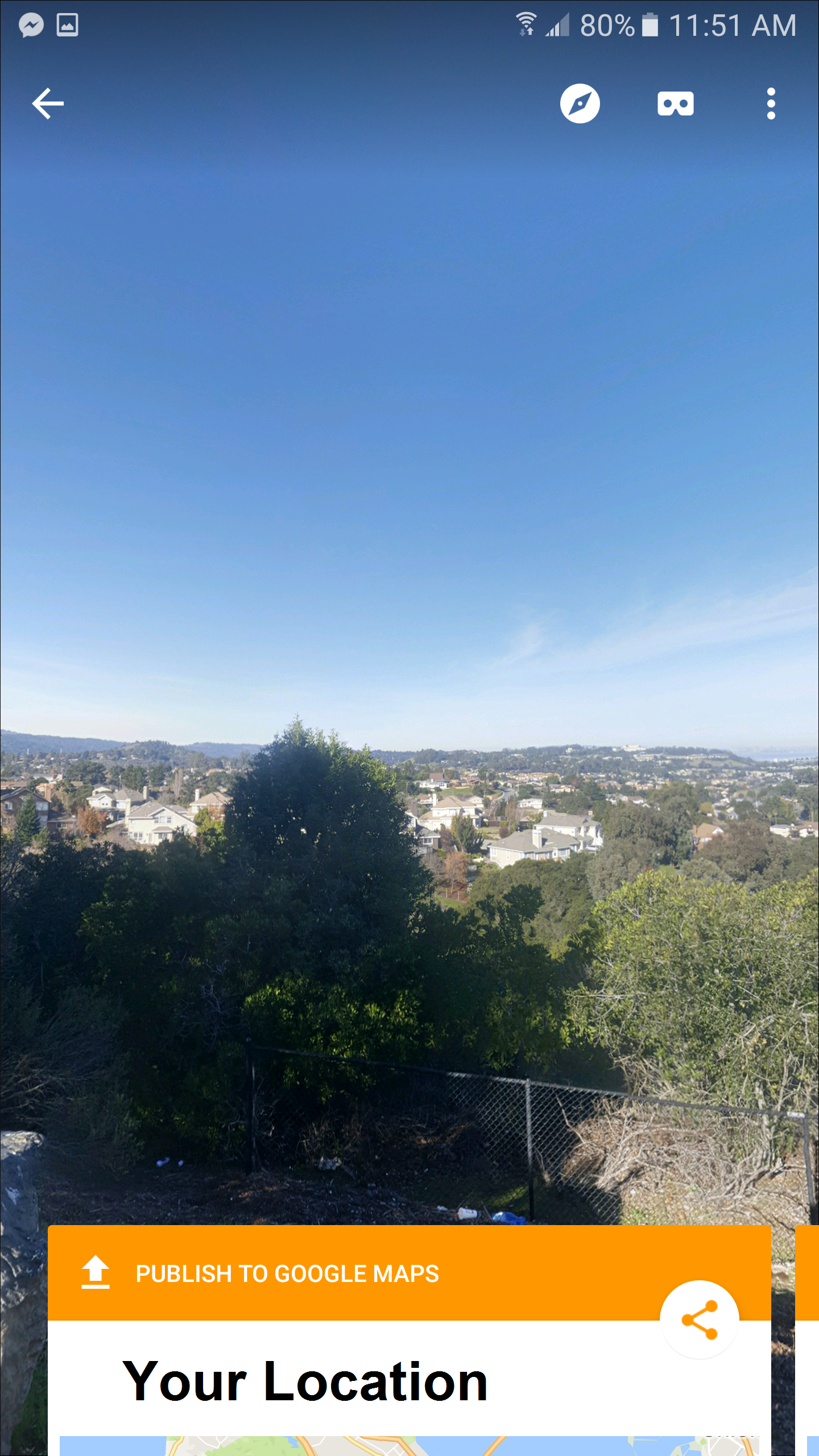
When its done, you will have the option to upload your image to Street View to be viewed publicly. If you prefer not to do that, then you can also get the image privately. It should be saved to your standard Camera's folder. If you would like to share the image via Social Media, you navigate to the 360 preview of your image in the Street View app and click the share icon.
Happy with your picture? Make sure to share with other students!